

Scriptary: A Script Library and Launcher
Scriptary is a single-file Windows desktop tool that brings your collection of Python and PowerShell scripts together in one place. Instead of hunting through folders, editing command-line arguments from memory, or re-typing the same parameters every time you run a job, Scriptary gives you a graphical interface to register, organize, configure, and execute scripts without leaving a single window. It requires only Python 3.9 or later and nothing beyond the standard library i.e. no pip installs, no virtual environments, no external dependencies.
Why I Built Scriptary
AI, particularly Claude and Gemini, has gotten really good at generating Python and PowerShell scripts. As a result, I've been creating a lot of scripts to automate and mass update things on my computer. For example, I recently did a photo library cleanup including migrating from Adobe Lightroom to digiKam and darktable. This involved renaming xmp files; finding and removing orphaned xmp files; building a keyword hierarchy; assigning descriptive keywords to photos; and moving large, unnecessary files to a separate location while keep the original RAW file in place. All of this was done by directing Claude and/or Gemini to create scripts that I then needed to test and run while also proving numerous input variables. And thus, Scriptary was born.
Features
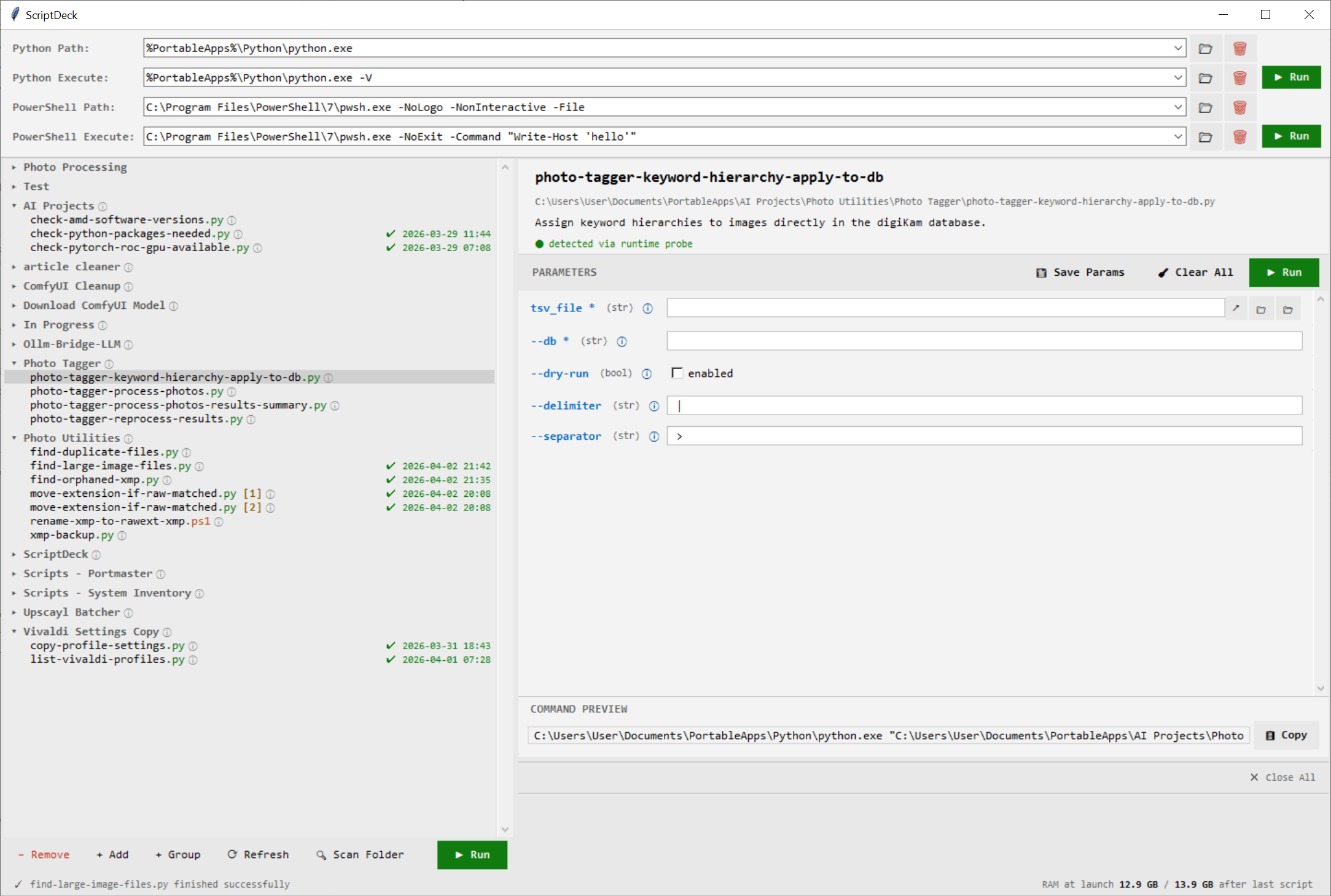
I built Scriptary to support how I work. I put extra time into refining the GUI because I wanted to be able to come back to it and intuitively know how to use it even after a long break. I also wanted to make it available to family so while technical in nature, a couple of clicks is all it takes to run a script once it's been registered and configured. Here are the feature highlights:
- The input parameters for scripts and the type of value expected (text, folder, boolean) are automatically detected. Values you provide for these parameters can be saved.
- Allows the users to specify the location of the python.exe to use which is handy if, like me, you're into portable versions of everything. The path to the PowerShell executable can also be specified in case you want to use the built-in PowerShell (v5) or a newer PowerShell (v7+).
- For quick one-offs, you can enter a Python or PowerShell command and click run.
- Everything you execute appears in a tabbed panel. If you want to look back at something, you can. Or you can just close the tabs when you're done.
- Scripts, by default, are given the same name as the filename, but their label can be customized by you.
- Scripts are organized by the folder that contains them or in a custom group you can create. Using Grouping and renaming scripts is handy for building processes where you want to run scripts in a particular order.
- The last successful or failed run date is tracked.
- Script listings can be cloned so that the same script can appear more than once, but with different parameter values.
- Many quality of life features like context menus, easy navigation to files/folders in Windows Explorer, window and group state persistence between sessions, and tooltips.
scriptary.py add <script.py>— registers a script and reports how many arguments were detected.scriptary.py remove <name>— removes a registered script by name.scriptary.py list— prints all registered scripts with their paths and descriptions.scriptary.py run <name>— executes a registered script using its saved parameters.- Scriptary stores all state in three JSON files:
registry.json,saved_params.json, andsettings.json— located in the same directory as the script. These are human-readable and easy to back up or share. - Window size, pane positions, and whether the window was maximized are restored between sessions automatically.
- The tool migrates older registry files forward when new fields are added, so updating to a newer version of Scriptary does not require resetting your library.
- No internet access is required. No telemetry. No installation step. Place
scriptary.pyanywhere and run it (requires Python, of course).
CLI Mode
Scriptary can also be driven entirely from the command line, without opening the GUI.
This makes Scriptary suitable for use in automated workflows or from within other scripts, in addition to interactive use.
Technical Notes

 (1 votes, average: 4.00 out of 5)
 Loading...
Leave a Reply