

How Voice-First Work Can Change the Way You Get Things Done
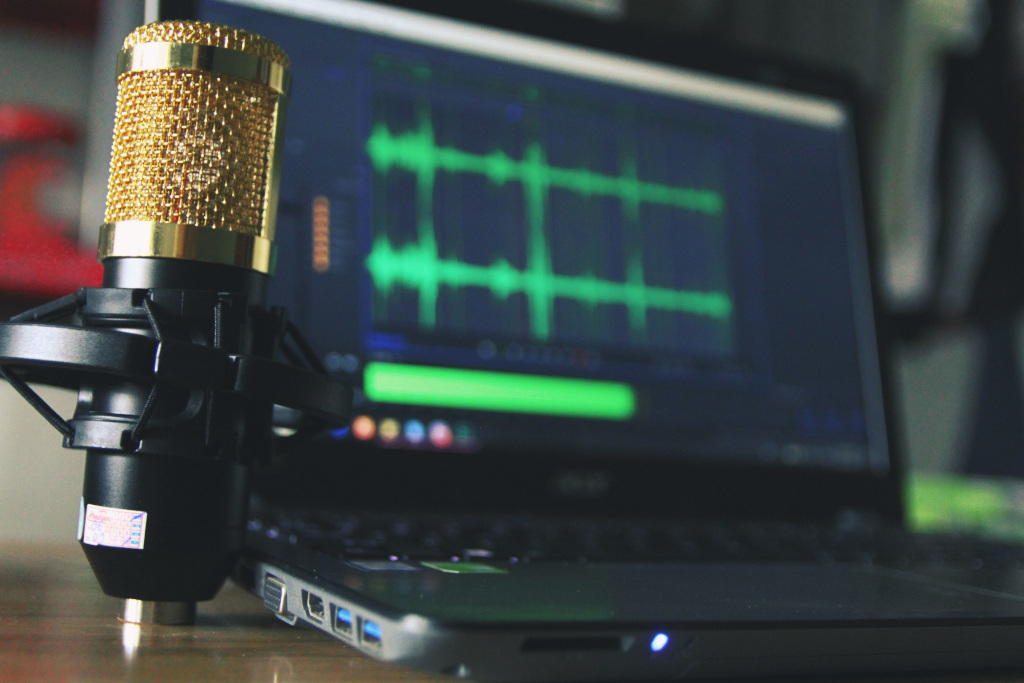
Have you ever had a great idea, opened a document, and then somehow lost the thought before you finished typing the first sentence? It happens more often than people admit. Emails take longer than expected, notes pile up, and small writing tasks start eating into the day. Voice input offers a different way to work. You can speak the idea while it is still fresh, turn it into text, and clean it up afterward. For many people, that makes writing feel faster, easier, and far less frustrating.
Typing Is a Habit, Not Always the Best Tool
Typing is so deeply built into digital work that most people rarely question it. We type messages, reports, search queries, meeting notes, and even reminders that say “remember to stop typing.”
It works well for precise editing and careful phrasing. It is less efficient when the goal is to capture a rough idea quickly.
Speaking can reduce the gap between thinking and drafting. You do not have to pause while finding the right key or reorganizing a sentence halfway through it. That makes voice input particularly useful during early-stage work, when momentum matters more than perfect punctuation.
It also changes your relationship with the blank page. Talking through an idea often feels less formal than sitting down to “write,” which can make starting easier.
Choose a Tool Around Your Actual Workflow
The right software should fit where you already work. A tool that produces excellent transcripts but requires constant copying, pasting, exporting, and reformatting may save less time than expected.
Check whether it works across your usual applications, how it handles names and specialist vocabulary, which operating systems it supports, and whether local processing is available.
OpenWhispr, for example, is an open-source voice-to-text tool designed to place punctuated text into whichever application currently has the cursor. It offers local and cloud transcription, a custom dictionary, cross-platform support, and more than 100 languages. Readers comparing dedicated options can learn more about how those features work together.
The feature list matters, but so does the feel. A good tool should disappear into the workflow after the shortcut is pressed.
Modern Voice Input Does More Than Basic Transcription
Early dictation tools were often rigid. Users had to speak unnaturally, pronounce punctuation carefully, and prepare for strange substitutions. A sentence about quarterly targets could become an unexpected discussion of “courtly tigers.”
Current tools are considerably more capable. Depending on the software, they may add punctuation, recognize context, learn unusual names, support multiple languages, and place text directly into the application you are already using.
Some platforms also offer voice commands for editing or formatting. Others can clean up spoken language by removing filler words and restructuring rough dictation.
That does not mean every transcript arrives ready to publish. It means voice input can now serve as a genuine drafting method rather than a novelty buried inside a settings menu.
The Best Uses Are Usually Ordinary Ones
Dictation is most useful where a small reduction in friction adds up over time.
Emails are an obvious example. Speaking the main point can be faster than typing, especially when the message is explanatory rather than highly formal. The same applies to reports, notes, outlines, project updates, journal entries, and first drafts.
Students may use voice input to get ideas onto the page before organizing them. Writers can dictate scenes or arguments while walking. Managers can capture observations immediately after a meeting instead of trusting a memory already crowded with six other priorities.
It is also useful for brainstorming. Spoken thoughts are allowed to be untidy. You can follow an unexpected connection, change direction, and clean up the result later.
Dictation works less well when precision is required from the first sentence. Contracts, technical specifications, equations, and sensitive messages usually need closer control.
Accessibility Is Not a Side Benefit
Voice input can be convenient for anyone, but for some people it removes a genuine barrier.
Repeated keyboard use may be difficult or painful for people with physical disabilities, temporary injuries, chronic conditions, or repetitive strain. Others find it easier to express ideas verbally because of cognitive or learning differences.
The World Wide Web Consortium explains how speech recognition supports accessibility by allowing people to dictate text and, with compatible systems, navigate controls without relying entirely on a keyboard or mouse.
That changes how dictation should be judged. It is not merely a productivity trick for people trying to clear their inboxes faster. It can give users a more sustainable or workable way to interact with digital systems.
Accessibility features often begin as necessities for some users and become useful options for everyone else.
Privacy Deserves the Same Attention as Accuracy
Voice data can contain more than the sentence you intended to dictate. Background conversations, names, financial details, health information, and workplace material may all be captured by the microphone.
Before choosing a tool, find out where the audio goes.
Does transcription happen on the device or in the cloud? Is the recording stored? Is the transcript used for product training? Can administrators control retention? Are privacy claims explained clearly, or buried under language that requires its own translation software?
The NIST Privacy Framework offers a broader way to think about data-processing risks, including how organizations identify, govern, communicate, and reduce privacy concerns.
Not every dictated sentence contains confidential information. Still, privacy settings are much easier to inspect before a problem than after one.
Spoken Drafts Still Need an Editor
Speech and polished writing are not the same thing.
People repeat points, change direction halfway through sentences, overuse filler words, and rely on tone to carry meaning. A transcript may capture the speech accurately while still producing weak written prose.
The solution is not to speak like a legal document. It is to separate drafting from editing.
Use dictation to capture the argument, explanation, or idea. Then review the text for structure, repetition, factual errors, punctuation, and tone. Check names and specialist terms carefully. A nearly correct medical term or client name is still wrong.
Reading the draft aloud can help, although doing so immediately after dictating it may make your workspace feel like a one-person radio station.
Build a Routine Before Expanding the Workflow
Start with low-risk tasks. Dictate a personal note, a rough outline, or an ordinary email. Notice which words the tool misses and whether you tend to speak in sentences that become too long on the page.
A practical workflow might look like this:
- Decide what the message needs to accomplish.
- Dictate the first draft without correcting every line.
- Review names, figures, and technical language.
- Cut repetition and reorganize unclear passages.
- Confirm sensitive information was handled appropriately.
- Send or publish only after a normal proofreading pass.
Over time, your speaking style will adjust. You may pause more deliberately, signal paragraph breaks, or learn which tasks are faster by voice and which still belong on the keyboard.
The goal is not to stop typing altogether. It is to stop treating typing as the only respectable way to produce text. Voice input works best as another instrument in the setup—useful when speed, comfort, accessibility, or momentum matters, and easy to set aside when precision calls for your hands.
839GYLCCC1992
Leave a Reply