

Show Modified Folders and Files
The following is AI-generated (aka vibe-coded) software. The software is specific to my needs and my system and may not work for you or your system. Support is limited, but if you report a bug I'll certainly look into it. All code is provided in a zip file for you to review should you choose.
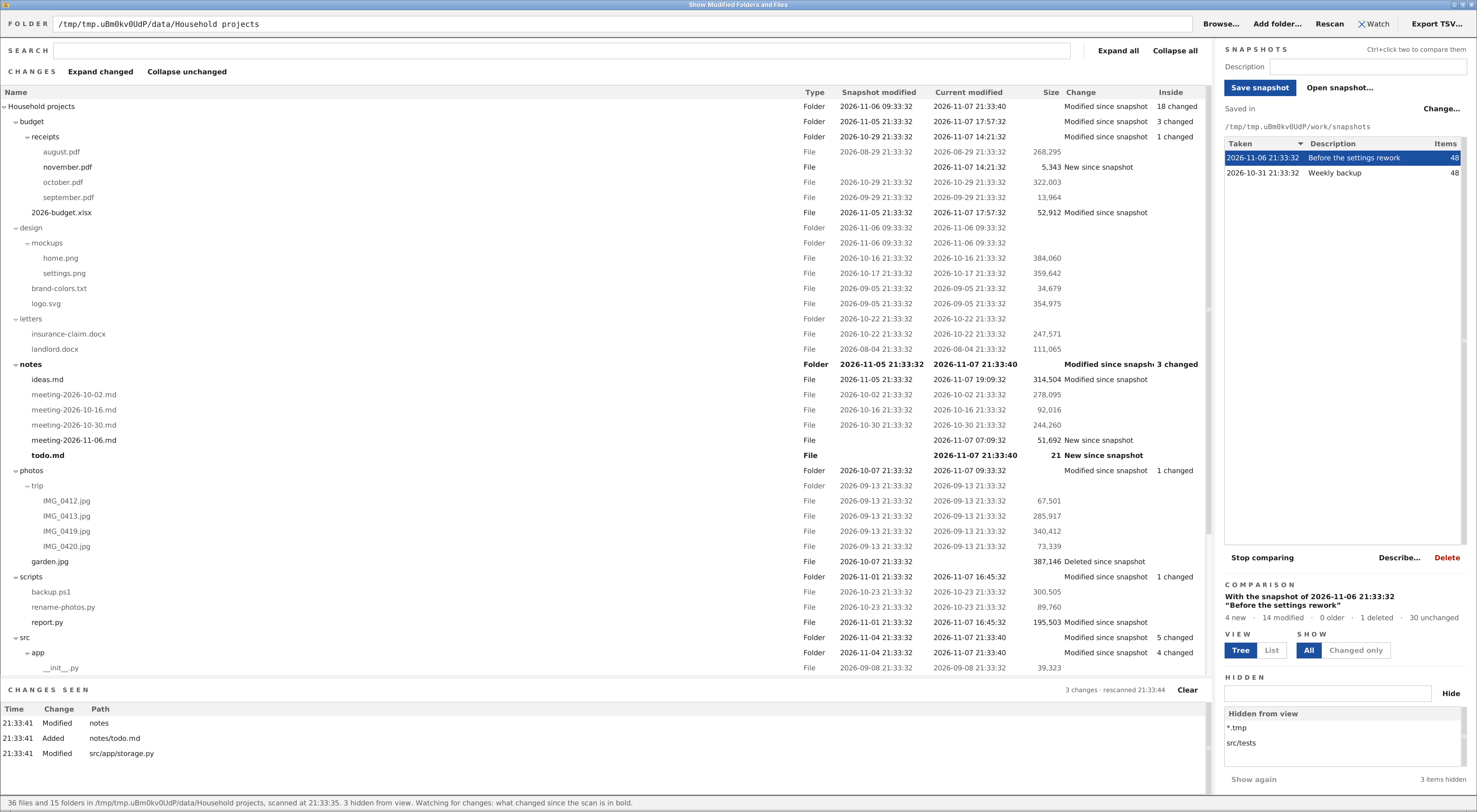
Lists every file and folder under a folder, or several as one set, with its last-modified date and size, as a tree or as one list, newest first. Save a snapshot of the dates and sizes, then compare a later scan with it, or two snapshots with each other, to see what is new, modified, older or deleted, or watch the folder change as it happens.
Features
- A tree of folders as in Windows Explorer, or a list of every item newest first, with a search as you type
- Several folders scanned as one set, to see everything an installer touched
- Snapshots of the dates and sizes, each with a description, saved from the window or a scheduled task
- Each row’s snapshot date and size beside today’s, with the change: new, modified, older or deleted
- Two snapshots compared with each other the same way
- In the tree, a count of the changes inside each folder, and buttons that open only those folders
- Live watching: changes show in the table as they happen, in bold, and in a log below it
- Patterns that hide folders and files from view, and export of the rows shown to TSV for Excel
Usage
Needs Python 3.8 or later with Tkinter (python.org installers include it; on Debian and Ubuntu, sudo apt install python3-tk).
Keep show-modified-folders-and-files.ico beside the script for the app’s icon; outside Windows, showing it also needs Pillow (pip install pillow). Nothing else is needed.
python show-modified-folders-and-files.pyScanning a folder
Type or paste a folder in the Folder field and press Enter, or click Browse…. The table lists the folder, every folder and every file under it; Rescan (F5) reads it again, and double-clicking a row opens its folder with the item selected.
View: Tree (the default) shows each folder’s contents under it, all open at first: its folders, then its files, each by name, numbers by their value (photo 9 before photo 10), so its headings don’t sort. A folder shows the newest dates of anything in it, and one you close stays closed when you rescan; Expand all and Collapse all open and close them all. View: List shows every item with its path, newest first; click a heading to sort by it. The app reopens in the view you left it in.
Scanning several folders
To see everything an installer touched, scan its folders together: Add folder… puts one more in the Folder field, or type them separated by | (C:\Program Files|C:\ProgramData). The set is scanned, saved and compared as one, each folder a top row of the tree, in any order; a folder inside another is left out. Right-click one of the set’s folders to stop scanning it.
Searching
Type in the Search field (Ctrl+F) and, once you pause, the table shows only what matches, in any case: text without a slash in names (budget, .pdf), text with one in the path (receipts/oct). In the tree, the folders on the way to each match show too, in light gray if they don’t match. It works with Changed only, hiding and comparing. Esc clears it, and the folders you had closed close again.
Snapshots and comparing
Type why you’re taking a snapshot in the Description field (“Initial install”, or leave it blank) and click Save snapshot (Ctrl+S, or Enter in the field). Rescan later, after installing a program or running a sync, and each row shows its date in the snapshot (Snapshot modified), its date now (Current modified), its size in bytes, and the change:
- New since snapshot: not in the snapshot.
- Modified since snapshot: a later date than in the snapshot, or the same date and another size (the Size column then shows the size in the snapshot, then the size now: 1,200 → 1,350).
- Older than snapshot: an earlier date, as when a file is restored from a backup.
- Deleted since snapshot: in the snapshot but gone now.
Unchanged rows are grayed. The Comparison section counts each kind of change, and Show: Changed only hides the rest (in the tree it keeps the folders that hold a change). In the tree, each folder’s Inside column says how many items changed anywhere under it (“12 changed”); Expand changed opens only the folders with a change inside and closes the rest, and Collapse unchanged closes those with none.
Pick another snapshot in the list to compare with it, Stop comparing to show the folder alone, Describe… (or double-click) to change a description, and Delete to remove one. Folders have no size; snapshots saved before sizes were kept are compared by date alone. The app reopens on the folder and snapshot it showed last.
Ctrl+click a second snapshot to compare the two with each other, the earlier as the baseline: the columns are Earlier snapshot and Later snapshot, the changes New in later and so on. Click one snapshot alone to compare with the folder again.
Snapshots are JSON files in the folder under “Saved in” (at first snapshots beside the script; Change… picks another), and the list shows those of the folder, or set of folders, scanned. Open snapshot… compares with a snapshot file from anywhere.
Watching for changes
Tick Watch in the toolbar and the table keeps up as files and folders change: what changed since the scan is bold, while the Change column still compares with the snapshot. Changes seen, below the table, logs each change with its time; double-click a line to show the item in its folder. On Windows the app is told of each change as it happens (and checks the whole folder every minute); elsewhere, or where Windows can’t report (some network shares), it rescans every few seconds. Hidden items aren’t watched, and more than 10,000 changes in a minute stop watching, the status bar naming the folder to hide. Comparing two snapshots, changes are only logged. Watch is remembered.
Hiding folders and files
Type a pattern in the Hidden field and click Hide, or right-click a row to hide that item, everything with its name, or every file with its extension. A pattern without a slash matches a name anywhere (node_modules, *.tmp); one with a slash, a path from the scanned folder (src/*/build), in any case.
Hidden items leave the table, the counts and exports, not scans, snapshots or the command line’s TSV. Show again (or Delete) brings them back.
Exporting
Export TSV… (Ctrl+E) writes the rows shown, in the table’s order, with full paths: Path, Type, LastModified and Size, or, comparing, Path, Type, SnapshotModified, CurrentModified, SnapshotSize, CurrentSize and Change (Earlier… and Later… for two snapshots), sizes in bytes. From the tree, each folder comes before what is in it, with its own dates. The file is UTF-8 with a byte-order mark, so Excel reads accented names.
The same file can be written from the command line, without the window (separate several folders with |):
python show-modified-folders-and-files.py --parent-folder-path "C:\Data\Household projects" --output-file-path "C:\Temp\household.tsv" --snapshot-file-path "snapshots\Household-projects-....json"Scanned 35 files and 15 folders in C:\Data\Household projects.
Compared with the snapshot of 2026-11-06 11:29:31 (“Before the settings rework”): 3 new, 14 modified, 1 older, 2 deleted, 32 unchanged.
Results written to C:\Temp\household.tsv, newest first.With --second-snapshot-file-path too, the two snapshots are compared with each other and nothing is scanned.
A snapshot can be saved from the command line too, from Task Scheduler or before an install, where the window keeps snapshots, so it shows in its list:
python show-modified-folders-and-files.py --parent-folder-path "C:\Program Files|C:\ProgramData" --save-snapshot TRUE --snapshot-description "Before installing XYZ"Command line
--working-folder-path FOLDER: where the settings, snapshots and temporary files go (blank: the script’s folder).--parent-folder-path FOLDER: the folder to scan, or several separated by|(blank: in the window, the folder scanned last time).--output-file-path FILE: write the list to this TSV file and exit without opening the window; needs--parent-folder-path, unless comparing two snapshots.--snapshot-file-path FILE: a snapshot to compare with (blank: none, or in the window, the one compared with last).--second-snapshot-file-path FILE: another snapshot of the same folder, to compare the two with each other instead of with the folder as it is now; needs--snapshot-file-path(blank: the folder as it is now).--save-snapshot TRUE: scan--parent-folder-path, save a snapshot and exit without opening the window; with--output-file-path, the TSV is written too (blank: FALSE).--snapshot-description TEXT: why the snapshot is taken, saved with it; needs--save-snapshot TRUE(blank: none).
--help lists them with their defaults. A mistake on the command line exits with 2; a folder or file that can’t be read or written exits with 1.
Keyboard shortcuts
| Key | Action |
|---|---|
| Enter (in the Folder field) | Scan the folder |
| Enter (in the Description field) | Save snapshot, with that description |
| Left and Right arrows (in the tree) | Close and open the selected folder |
| F5 | Rescan |
| Ctrl+S | Save snapshot |
| Ctrl+E | Export TSV |
| Ctrl+C | Copy the selected rows’ full paths |
| Ctrl+F | Go to the Search field |
| Esc (in the Search field) | Clear the search |
| Delete (in the Hidden list) | Show again what the selected patterns hid |
Limitations
- Folders only: registry changes an installer makes aren’t seen.
- Dates and sizes are compared, not contents: a file rewritten with its old date and the same size shows as unchanged.
- The app’s working folder and snapshots are left out of every scan, so they never show as changes.
- A link to a folder is listed with its target’s date, but what is inside it isn’t scanned.
- On Windows, a date before 1970 (a file copied without its date can show 1601) is shown in UTC, marked so.
- A folder of about 100,000 items takes about 5 seconds to show, and a search of it up to 4 seconds.
Leave a Reply